
CoSApp Lab extension
CoSApp Lab is integrated into JupyterLab as an extension, the main entry point is SysExplorer class. It allows user to create a new dashboard or to load an existing one.
Starting SysExplorer
SysExplorer can be imported from cosapp_lab.widgets, the required input parameter is an instance or a list of instance of CosApp system.
Default mode: SysExplorer will be opened on a side panel of JupyterLab interface
from cosapp_lab.widgets import SysExplorer
demo = AnyCosappSystem("demo")
a = SysExplorer(demo)

Custom widget position: By specifying the anchor parameter with one of ‘split-right’, ‘split-left’, ‘split-top’, ‘split-bottom’, ‘tab-before’, ‘tab-after’, ‘right’, SysExplorer can be opened in other position. For example, ‘tab-after’ will open SysExplorer in a new tab.
from cosapp_lab.widgets import SysExplorer
demo = AnyCosappSystem("demo")
a = SysExplorer(demo, anchor = 'tab-after')
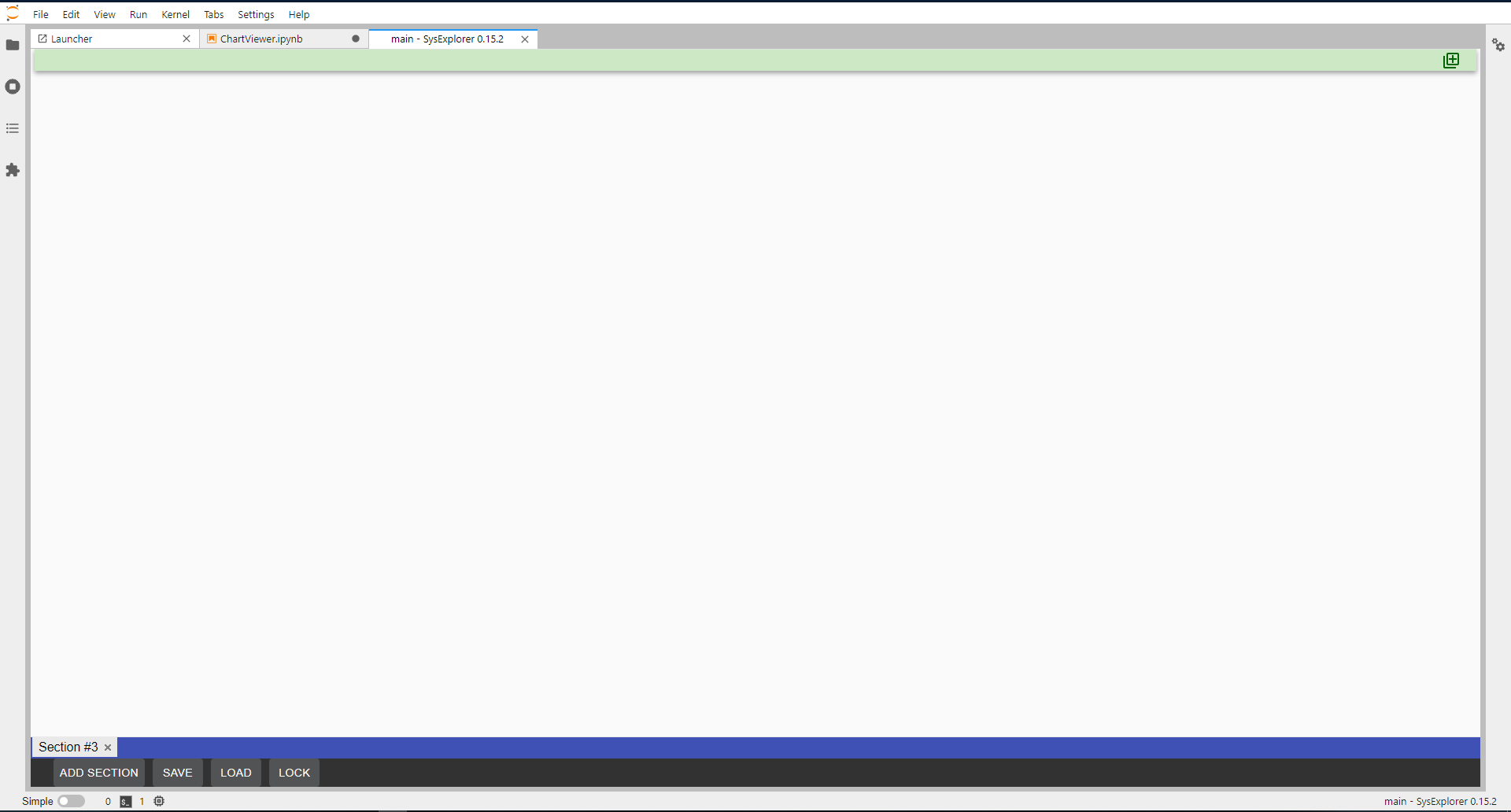
Restore interface composition from template: By specifying the template parameter with the path to the configuration file, SysExplorer interface can be restored.
from cosapp_lab.widgets import SysExplorer
demo = AnyCosappSystem("demo")
a = SysExplorer(demo, template = 'dp.json')

SysExplorer main interface
SysExplorer interface is composed by three components:
Toolbar: located at bottom of interface, it contains the button to add new section (ADD SECTION), to save or load interface template file (SAVE/ LOAD) and to deactivate tab close button (LOCK) .
Section tab bar: a bar to hold the section tabs, it is located on top of toolbar. SysExplorer interface can contain multiple sections.
Section display window: the activated section is shown in this window. Each section is can be composed by multiple widgets.
A typical interface is displayed in figure below

Toolbar buttons
ADD SECTION : use this button to add a new section into dashboard, a section is displayed as a tab in the section tab bar. User can double click on the section tab to rename section.
SAVE : save current dashboard configuration into a json file in current working folder. If SysExplorer is started with a template, the current template will be overwritten.
LOAD : load a dashboard configuration file, the interface of dashboard will be reinitialized with new template from loaded file.
LOCK/UNLOCK : use this button to activate/deactivate the tab close button.

Section display window
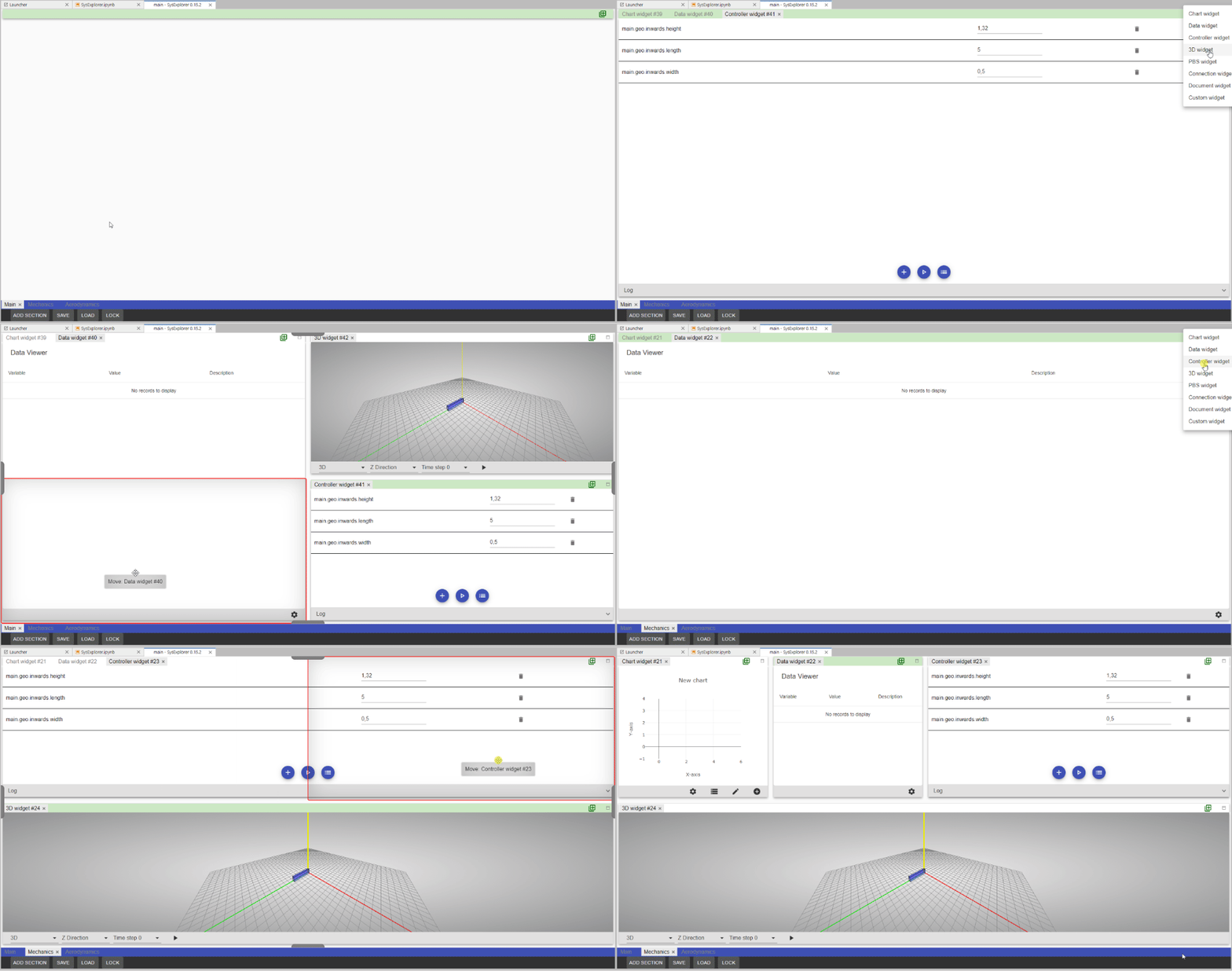
A section can be composed by multiple widgets, users can use add widget button to add the predefined widgets into section. Widget will be displayed in a widget tab bar. A typical layout of a section is shown in image below:

User can customized layout of current section by using drag and drop. Widget can also be resized by dragging its borders.
SysExplorer widgets list
All widgets of SysExplorer are detailed in section below